
Before uploading & sharing your iPhone photos & videos, it is usually a good idea to preserve some privacy and strip the metadata from them. I found a couple of ways to delete the metadata but then when I uploaded the photos to a photo sharing website, they were not in date order… Because the photo creation date was deleted with the metadata. Bleh.
I looked for a simple tool to do that, but what I found was not simple or didn’t match my needs. I want to delete any identifying data but leave the photo date.
In the end, I spent about 4 hours learning as I went, to write this little function that can show you what metadata is for a photo or video, then give you a choice to strip it out, or leave it as is. If you are doing a batch at once, a second version can delete the metadata (except the date, which I want to remain) quickly & without a dialog box.
I wrote this as a “Quick Action” which is available by right-clicking on a file in the MacOS Finder.
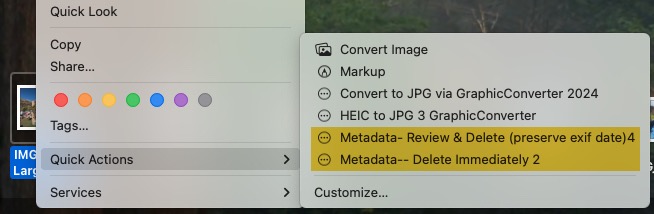
I used MacOS 15 Sequoia for this, I expect other versions of MacOS will be the same or similar. You may be able to adapt this for other platforms.
Required:
MacOS Automator app
ExifTool
Download ExifTool by Phil Harvey https://exiftool.org/ OR https://exiftool.sourceforge.net/
Double click the MacOS package to install.
If MacOS gives you a message about it can’t install, then you may need to temporarily “lower the shields” to install this app, as it is not signed. I don;t recommend that for just any app, but ExifTool is well known & not malware, so it will be ok. To do that, visit your System Settings → Privacy & Security. Scroll to the bottom & it will smugly say it blocked this app from installing, but will offer you a button to override & allow it to continue. Go ahead & push that button then double-click the installer package again to proceed.
ExifTool is a command line app, but don’t worry about that. You will not need to use the command line to use it this way.
Launch the Automator app –> New → Quick Action
1st line should be: Workflow receives current: files or folders in Finder.app
2nd line is Run AppleScript.
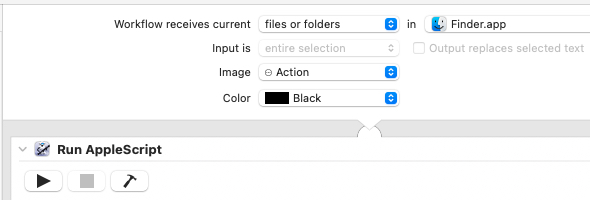
Paste in this AppleScript:
property debugMode : false
property showExifDialog : true
on run {input, parameters}
repeat with aFile in input
set fileAlias to aFile as alias
set filePath to POSIX path of fileAlias

tell application "Finder"
set fileName to name of fileAlias
end tell

try
-- Display the current metadata
set exifData to do shell script ¬
"/usr/local/bin/exiftool " & quoted form of filePath

-- Display the current metadata only when enabled
if showExifDialog then
display dialog exifData ¬
with title "Metadata for " & fileName ¬
buttons {"Skip File", "Strip Metadata"} ¬
default button "Strip Metadata"

set shouldStrip to (button returned of result is "Strip Metadata")
else
-- Automatically process the file when the dialog is disabled
set shouldStrip to true
end if

if shouldStrip then

-- Read the original dates before deleting metadata

set fileCreationDate to do shell script ¬
"/usr/local/bin/exiftool -s3 -FileCreateDate " & ¬
quoted form of filePath

set photoDate to do shell script ¬
"/usr/local/bin/exiftool -s3 -EXIF:DateTimeOriginal " & ¬
quoted form of filePath

set videoDate to do shell script ¬
"/usr/local/bin/exiftool -s3 -QuickTime:CreateDate " & ¬
quoted form of filePath

set videoKeysDate to do shell script ¬
"/usr/local/bin/exiftool -s3 -Keys:CreationDate " & ¬
quoted form of filePath

set orientationValue to do shell script ¬
"/usr/local/bin/exiftool -n -s3 -EXIF:Orientation " & ¬
quoted form of filePath

set photoOffset to do shell script ¬
"/usr/local/bin/exiftool -s3 -EXIF:OffsetTimeOriginal " & ¬
quoted form of filePath

-- Show what was found - TO TOGGLE DeBug Mode- EDIT the script 1st line to True or False.
if debugMode then
display dialog ¬
"Photo date: " & photoDate & return & ¬
"Video date: " & videoDate & return & ¬
"Video Keys date: " & videoKeysDate & return & ¬
"Date Offset: " & photoOffset & return & ¬
"Orientation:" & orientationValue ¬
with title ¬
"Dates Found" buttons {"Continue"} default button "Continue"
end if

-- Delete all metadata
do shell script ¬
"/usr/local/bin/exiftool -all= --ICC_Profile:all -overwrite_original " & ¬
quoted form of filePath

-- Restore the photo date explicitly to the EXIF group
if photoDate is not "" then
do shell script ¬
"/usr/local/bin/exiftool -overwrite_original " & ¬
"-EXIF:DateTimeOriginal=" & quoted form of photoDate & space & ¬
quoted form of filePath
end if

if photoOffset is not "" then
do shell script ¬
"/usr/local/bin/exiftool -overwrite_original " & ¬
"-EXIF:OffsetTimeOriginal=" & quoted form of photoOffset & space & ¬
quoted form of filePath
end if

-- Restore the standard QuickTime creation date
if videoDate is not "" then
do shell script ¬
"/usr/local/bin/exiftool -overwrite_original " & ¬
"-QuickTime:CreateDate=" & quoted form of videoDate & space & ¬
quoted form of filePath
end if

-- Restore Apple's Keys creation date
if videoKeysDate is not "" then
do shell script ¬
"/usr/local/bin/exiftool -overwrite_original " & ¬
"-Keys:CreationDate=" & quoted form of videoKeysDate & space & ¬
quoted form of filePath
end if
-- Restore Finder Creation Date
if fileCreationDate is not "" then
do shell script ¬
"/usr/local/bin/exiftool -overwrite_original " & ¬
"-FileCreateDate=" & quoted form of fileCreationDate & space & ¬
quoted form of filePath
end if

-- Restore the photo orientation
if orientationValue is not "" then
do shell script ¬
"/usr/local/bin/exiftool -overwrite_original " & ¬
"-EXIF:Orientation#=" & quoted form of orientationValue & space & ¬
quoted form of filePath
end if
end if -- closes if shouldStrip

on error errMsg
display dialog ¬
"Could not process " & fileName & "." & return & return & ¬
"Error: " & errMsg ¬
buttons {"OK"} default button "OK"
end try

end repeat

return input
end run
Click the Hammer button to format & check for errors.
Save the script. It ought to save into the ~/Library/Services/ folder, which is correct.
I suggest naming this script something like: “Metadata- Review & Delete”
This version will show you the metadata, then ask if you want to delete it (all except date) or leave it as is.
FOR EXTRA CREDIT:
Edit the 2nd line of the script; change True to Falase
Save As… “Metadata– Delete Immediately”
This version will not display the metadata & will not ask you, it will just delete the metadata (except photo date). Better for dealing with a bunch of files at once.
We’re all set.
TO USE;
in the MacOS Finder, right click (control- click) a photo or movie. From the pop up menu, select Quick Actions →
ATTACHMENTS:
Here are Automator scripts I wrote. 2 versions. The only difference is the file name & the 2nd line true/false. One file will display the EXIF metadata then ask if you want to delete it (except the date). Attached below as 1 zip file.
The other file will not display & will not ask. It just quickly deletes the metadata (except the date).
Metadata Review Delete 2Automator Scripts 10-3-2026
To use these files, unZip & drag them to the folder: ~/Library/Services/
Then right-click on a photo or movie to run to script.
Please LMK if I left anything out